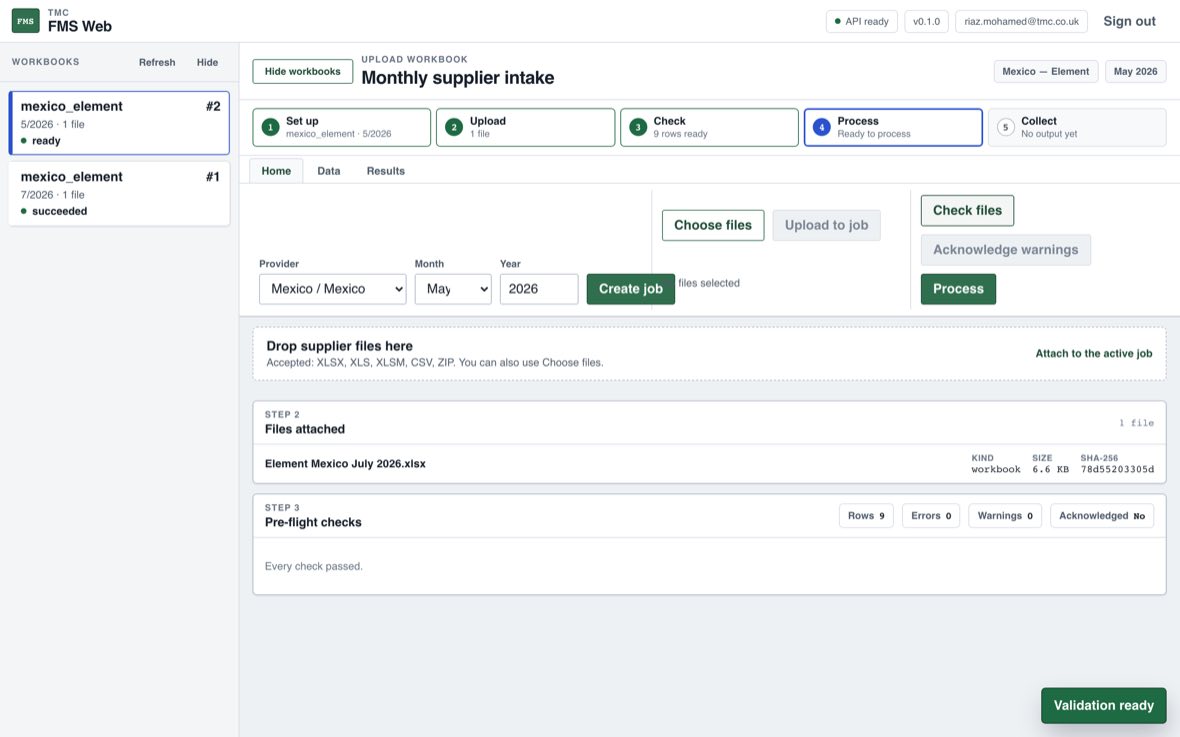
A month runs in five steps: set up, upload, check, process, collect. The stage rail across the top of the workspace shows which one you are on, so you never have to guess where a month has got to.
The workspace
Three things to know about this screen. The five stages across the top are the whole job, and each reports its own state in words. The list on the left is every job you have created; nothing is ever deleted, so a month you did last week is still there. The three tabs are the working areas: Home to upload and process, Data for the spreadsheet view, Results to download.
Home always names the job it is acting on, on the Open job line at the left of the ribbon: customer, supplier and month. Every button beside it acts on that job and nothing else. Setting up a new month is a separate thing, behind New job above the workbook list.
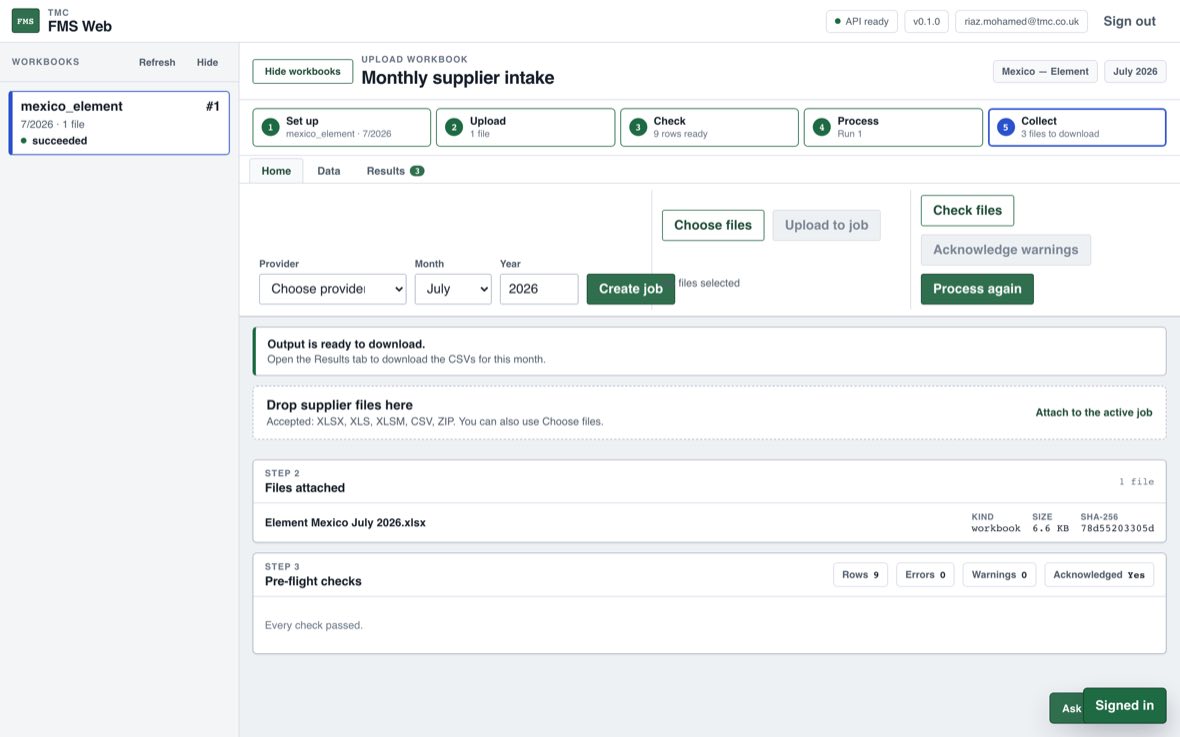
Choosing a provider
Not every country is available. The ones that are not are greyed out and say why, either that no rules exist for them yet, or that the rules are written but still waiting on business sign-off. You cannot select one of those, which is deliberate: it saves you uploading a file and waiting, only to be refused at the end.
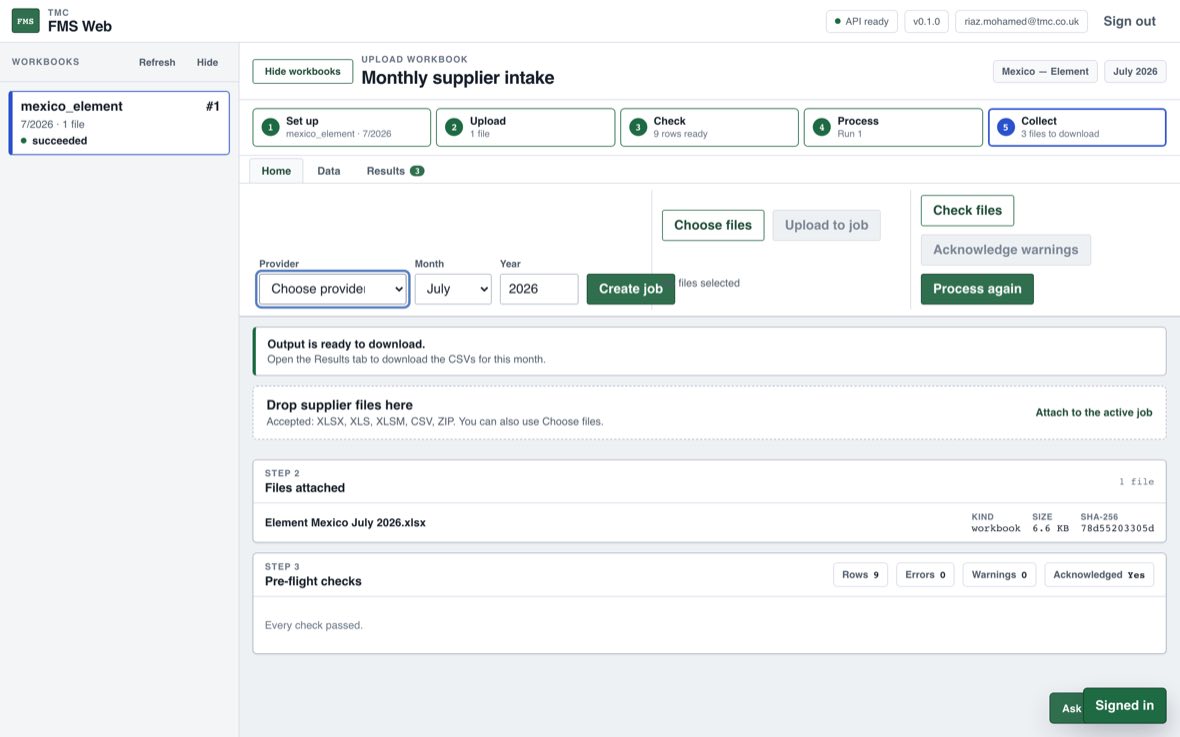
Press New job above the workbook list on the left. Pick the country, the supplier, the invoice month and the year, then press Create job. That is all a job is: a supplier and a month. The month must be the current one or in the past.
The new job opens as soon as it is created, and the Open job line on Home changes to name it. Closing the box with Cancel or the Escape key changes nothing: whatever was open stays open.
Adding the supplier file
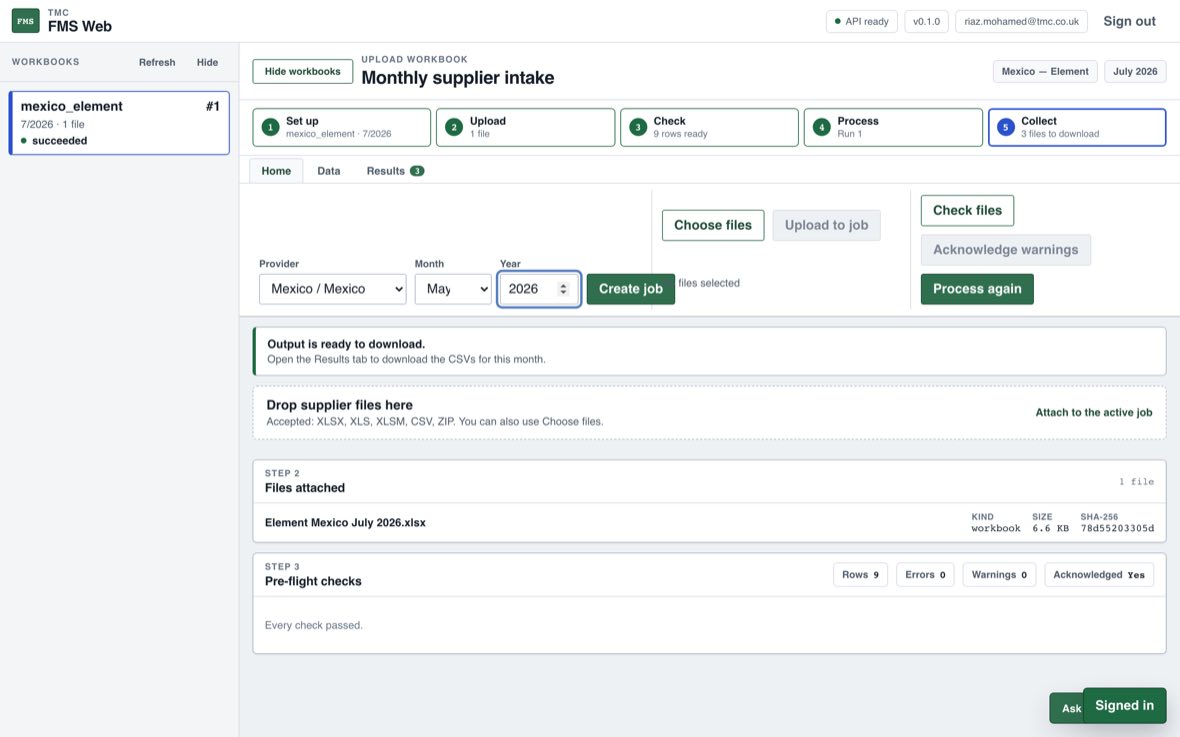
Drag the file onto the drop zone or use Choose files, then press Upload to job. XLSX, XLS, XLSM, CSV and ZIP are accepted. If the supplier sent a ZIP, upload it as it is and the app will open it. You can add more than one file if a supplier splits a month.
Once a file is chosen, the line under the button names where it is going, for example Upload to Verizon — Element · July 2026. Read it before you press Upload. If you move to another job while a file is still waiting to be sent, the app asks first and then drops the file rather than sending it to the new month.
Uploaded the wrong workbook? Remove beside the file takes that one file off the job. The month, and anything else already on it, stays.
Checking the file
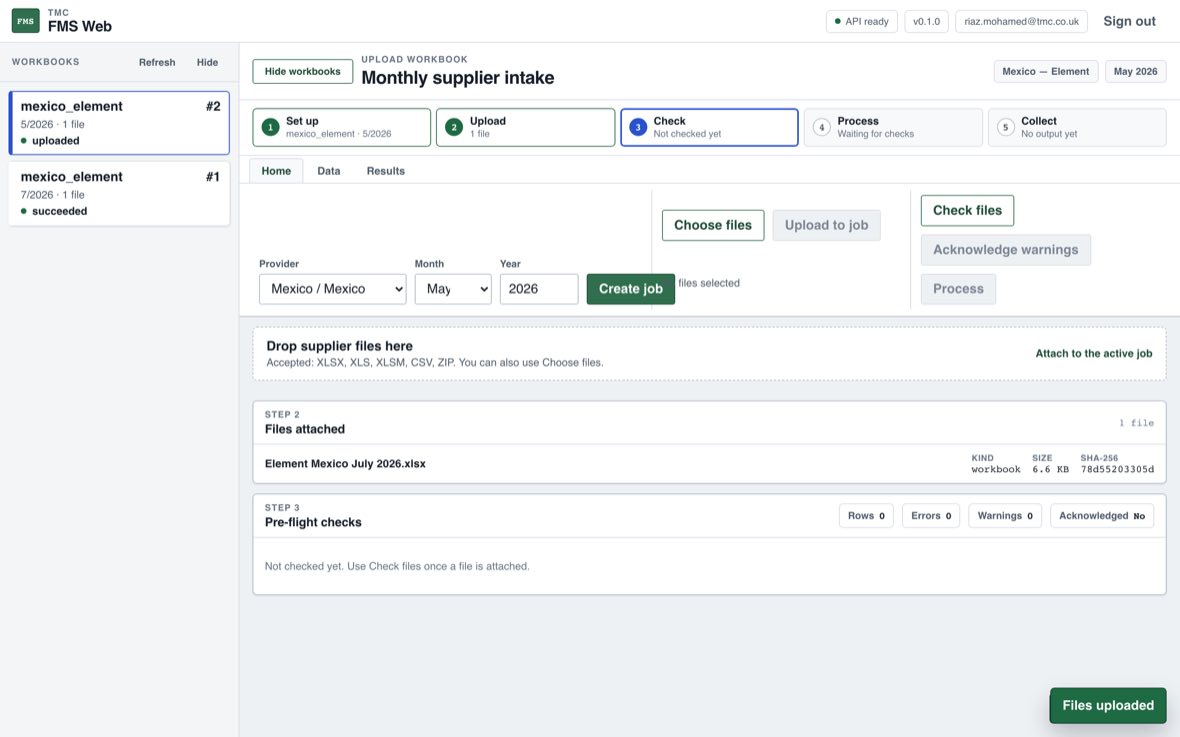
Check files reads the file and runs the country's rules over it as a trial, without producing or saving anything. It reports the rows it can see, any errors, and any warnings. If the file could not be processed, for example because columns are missing or its dates are in another month, you find out here rather than after pressing Process. Errors block processing. Warnings do not, but they have to be acknowledged, so that nobody processes a month without having seen what the check found.
no_data_rows. Quote it when
reporting a problem.
Processing
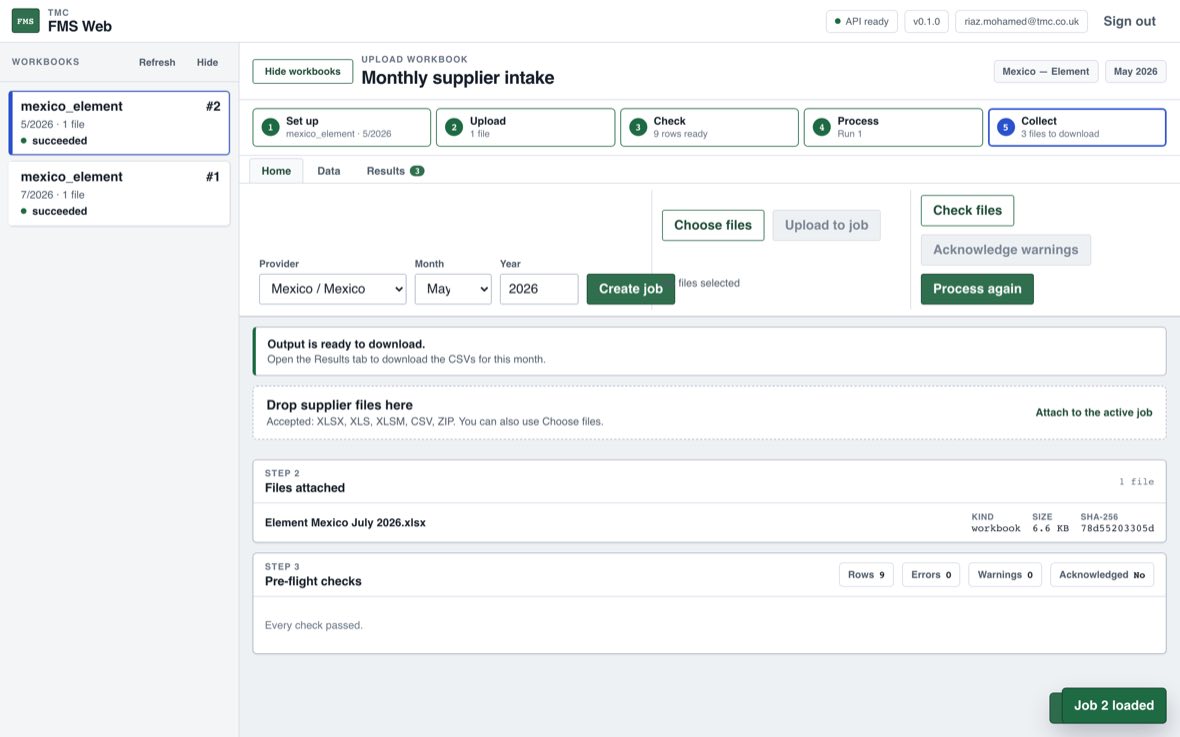
Process puts the job on a queue and runs the country rules in the background. The page updates itself when the run finishes, so you can leave it or work on another job.
If a run fails, the banner turns red and gives a short code and what to do about it. Nothing is produced on a failure, so there is no risk of a half-finished file going anywhere.
Getting the output
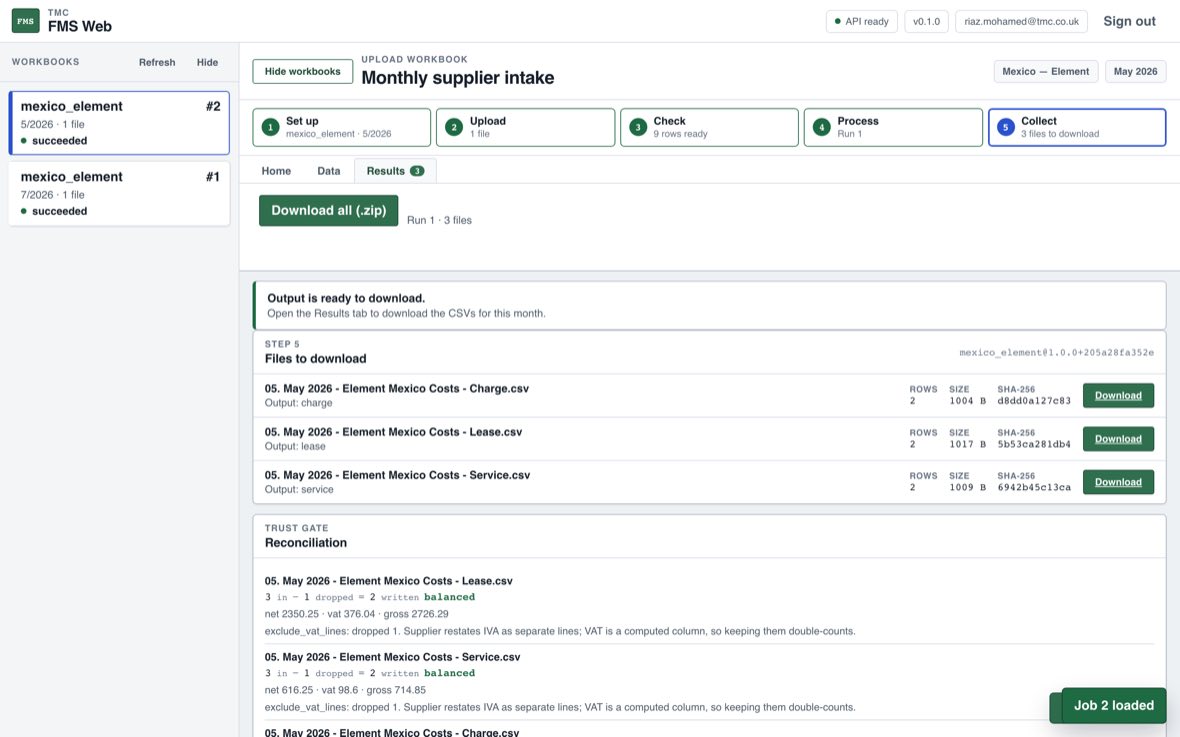
The Results tab lists every file the run produced, with the rows written, the size, a fingerprint of the exact bytes, and a download button. Download all takes the lot as a zip. Filenames match the ones the previous process produced, so anything downstream that depends on the name keeps working.
Manifest beside a file opens the record behind it: the spec version and its hash, the hashes of the files that went in, the row counts and the totals. That is what you send when someone downstream asks where a number came from.
Charge types that need review
Sometimes a supplier invents a charge code the rules have never seen, or a code sits in the template with an empty category cell. The app never guesses what such a line is: the run still completes, and a panel called Charge types need review appears on the Results tab listing each unresolved value, where it came from in the supplier file (sheet, row, and the exact cells), and how many output rows it touches.
To resolve one: expand the row, pick one of the ten Schneider categories from the dropdown, and press Confirm…. The confirmation names the value, the category, and how many rows will change, and applies to this job only. The app then re-processes into a new run — the earlier run stays downloadable and unchanged, so you can compare before and after.
Only the ten standard categories can be chosen. If none of them fits, or the same value should map differently on different rows, report it instead of forcing a category — an administrator can handle the exception. A decision that should apply to every future month (not just this job) is a promotion an administrator records separately.
Reading the reconciliation
Below the file list, the app writes out its own arithmetic for each output, for
example 3 in - 1 dropped = 2 written followed by
balanced. It also names the filter that dropped rows, so a
dropped row is never a mystery. Mexico, for instance, drops the I.V.A. lines
because VAT is calculated as a column, and counting those lines as rows too
would double the tax.
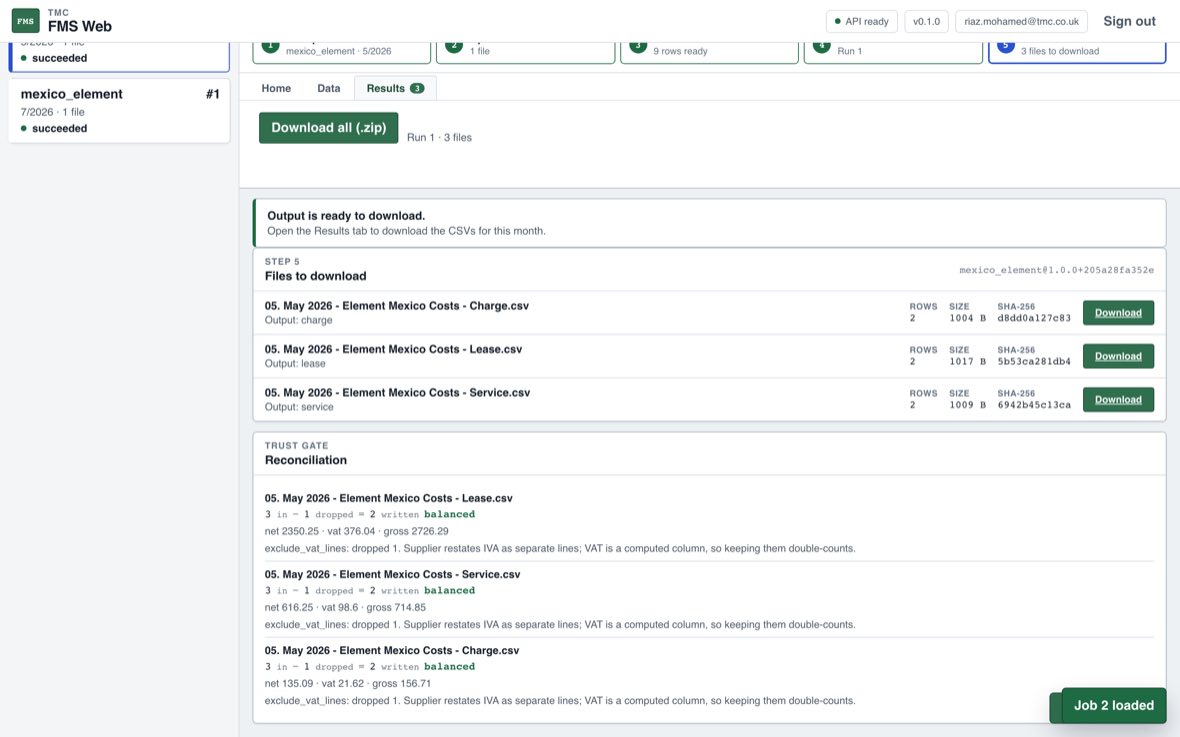
If a row ever says "does not balance", stop and report it. That means rows went missing between the supplier file and the output, which is the one thing this app must never do.
The spreadsheet view
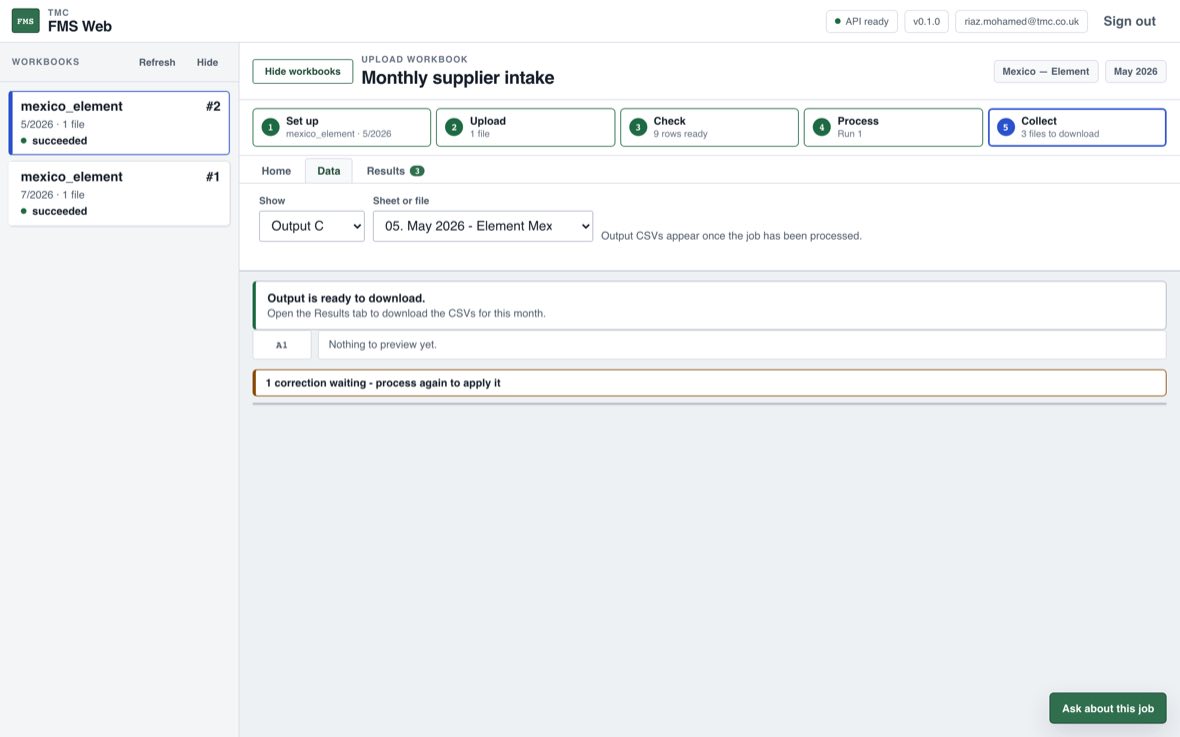
The Data tab is a real spreadsheet: sheet tabs along the bottom, column letters, row numbers, scrolling and zoom. The Show dropdown switches between the uploaded workbook, displayed exactly as the supplier sent it with their own sheet names and headers, and the output CSV before you download it.
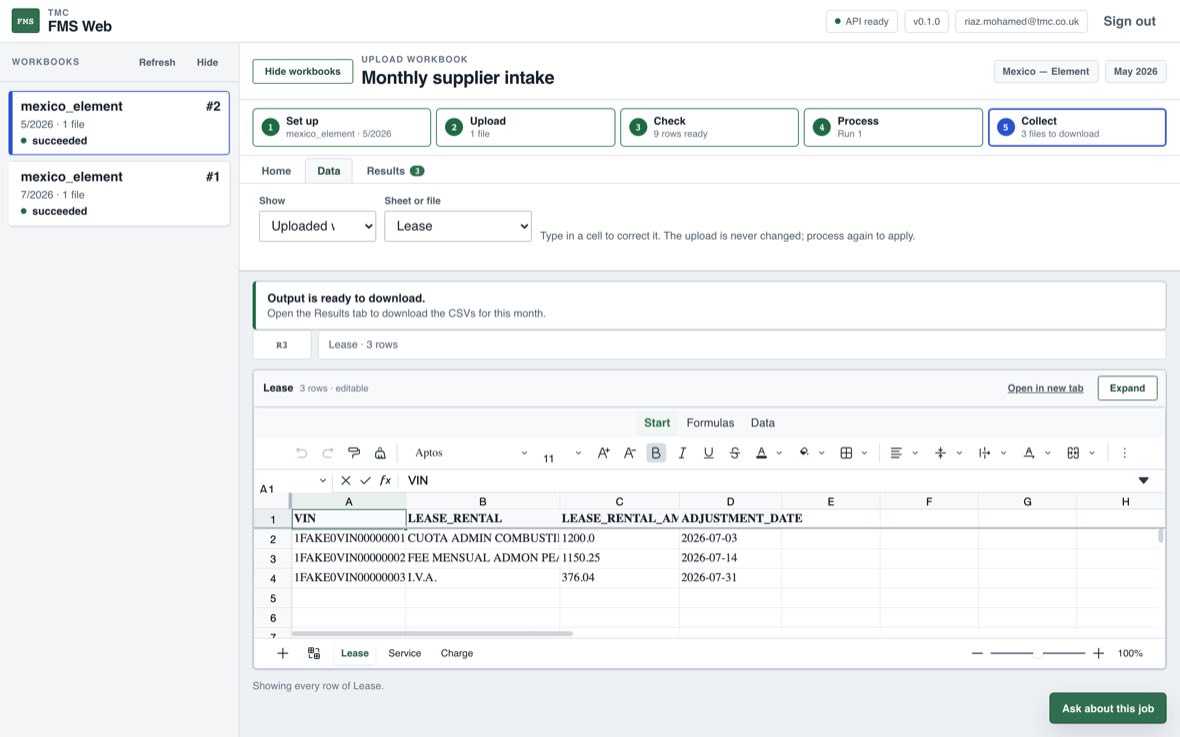
Output files are always read-only, as they are the deliverable rather than an input. Expand makes the grid full screen and Escape brings it back; Open in new tab gives the sheet a browser tab of its own, which is easier on a large file.
Correcting a cell
If a supplier has sent a wrong value and you know what it should be, click the cell, type the correct value and press Enter.
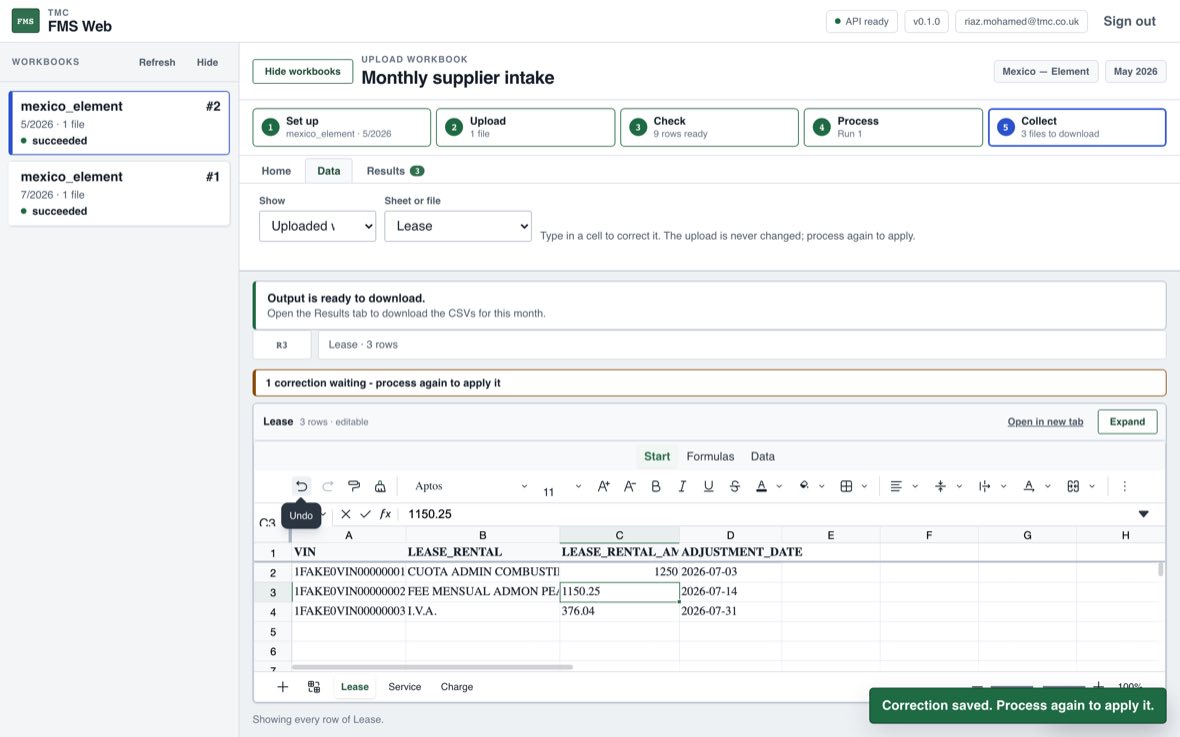
Three things happen, and all three matter:
- The supplier's file is never changed. The correction is stored separately and applied on top, so there is always proof of what was actually sent.
- Nothing changes until the job is processed again. The amber bar shows how many corrections are waiting.
- Corrections are permanent. Process the same month again next week and the correction is still applied. It does not quietly revert.
The header row cannot be edited, and neither can a column the country rules do not read. The app says so rather than silently ignoring the change.
The assistant
Ask about this job opens an assistant that knows which job is open, so "did this work?" is enough. It can say whether a run succeeded and why it failed if it did not, what the checks found, the reconciliation numbers, and which lookup values it could not map. It lists the data it consulted at the bottom of each answer.
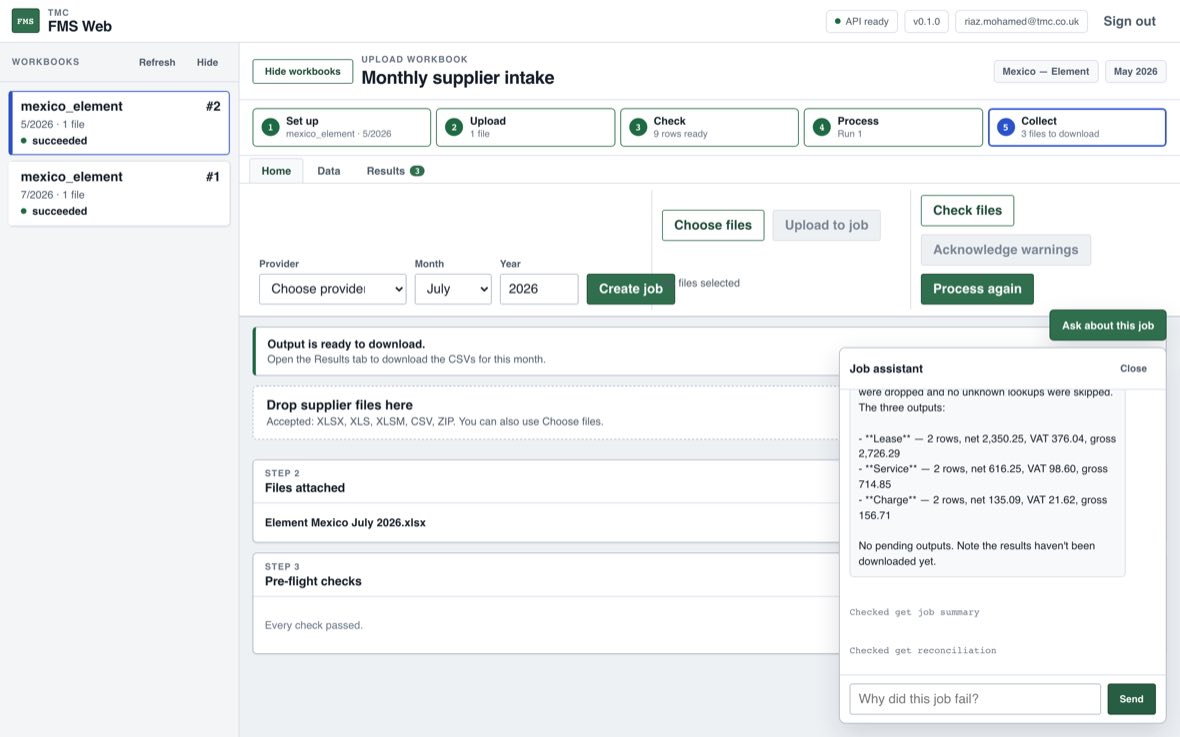
It has no access to the contents of any file. It cannot see a driver name, a registration or a line amount, only counts, codes, totals and statuses. It also cannot change anything.
Whose month is it
Everyone in your team can open every month, look at the data, read the reconciliation and download the output. That is deliberate: covering for a colleague should not mean being unable to see what they have done.
Changing a month is different. Uploading a file, correcting a cell, or processing alters what will be sent onward, and two people editing the same period without knowing it is how a wrong number reaches a supplier. So the person who created a month is the one who can change it, and the job list names the owner on everybody else's.
On a month you do not own, the buttons that would change it are switched off and the reason is shown above them. An administrator can change any month in the team, which covers the case where the owner is on leave or has left.
Reporting a problem
When something looks wrong, the fastest thing to send is:
- A subject line with the country and one line on the problem, for example Poland: VAT column is 0.00 on every row.
- What you did, what you expected, and what you got.
- A screenshot, if it is visible on screen.
- The file the app produced.
- The file you expected.
The last two matter most. With both files side by side the cause is usually
findable the same day. Without them it is guesswork. If the app refused a file,
include the short code shown above the file list, such as
input_unreadable or reconciliation_failed, as it names
the stage that failed.
Worth knowing
- Nothing done here affects live FMS data. The app produces CSVs to download and pushes nothing anywhere.
- Every run is kept. Process the same month twice and both versions remain, each with its own files, so they can be compared.
- The Unconfirmed file is not produced yet. It needs the Milcap vehicle list, which the app does not receive.
- Uploaded files and results are kept for 60 days, then removed automatically.
- Change password in the header sets your own password. Doing so signs you out everywhere, including here, so sign in again afterwards with the new one.
- Five wrong password attempts locks an account for fifteen minutes. Wait rather than retry.